
Why Your Gaming PC Keeps Overheating During Games
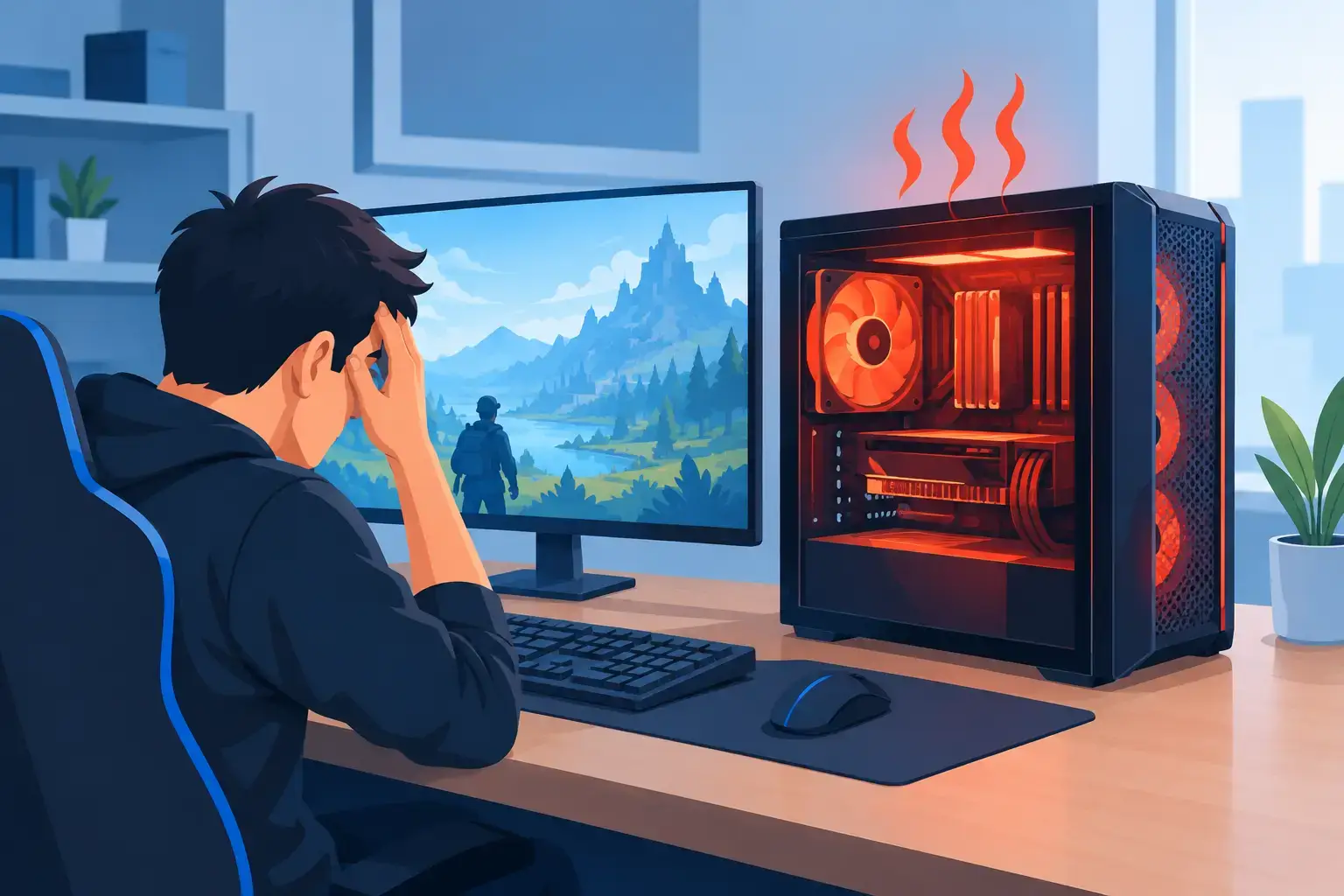
Your game is running well, the fans suddenly sound like a jet engine, and then the frame rate drops or the PC shuts down. If your gaming PC keeps overheating, it is not just an annoyance. High temperatures can cause stuttering, unexpected restarts, crashes, and over time, unnecessary wear on major components.
The good news is that overheating usually has a clear cause. Sometimes the fix is as simple as cleaning out dust or moving the PC away from a tight corner. Other times, the issue is a failing cooler, dried thermal paste, an incorrect fan setting, or a graphics card that needs closer attention. The goal is not to make your PC perfectly silent or ice-cold. It is to keep temperatures in a safe range while it performs the way it should.
First, Know What “Too Hot” Looks Like
Gaming PCs naturally get warm under load. Your CPU and graphics card are working much harder during a demanding game than they are while browsing the web or watching a video. A brief temperature spike is usually normal. Consistently high temperatures, throttling, or shutdowns are not.
As a general rule, many modern CPUs can briefly reach the 90s Celsius during heavy workloads, especially in compact systems or with aggressive boost settings. However, a CPU that stays near its thermal limit while gaming deserves attention. Most GPUs are happier when their core temperature stays below roughly 80 to 85 degrees Celsius, though the exact safe range depends on the model. Hotspot and memory temperatures can be higher than the main GPU reading.
Watch for the symptoms around the temperature number. A PC may be overheating if games begin to stutter after 15 to 30 minutes, fans run at maximum speed all the time, the case feels unusually hot, the screen goes black, or the computer restarts without warning. A burning smell, clicking fan, or repeated shutdown is a reason to stop gaming and get the system checked.
Why a Gaming PC Keeps Overheating
Dust is blocking airflow
Dust is one of the most common causes, especially in homes with pets, carpets, or smokers. It builds up in front intake filters, CPU heatsinks, graphics card fins, radiator fans, and power supply vents. Even a thin layer can reduce airflow enough to raise temperatures during long gaming sessions.
A clean-looking case window does not necessarily mean the PC is clean inside. Dust often collects behind the front panel and deep between heatsink fins, where it is easy to miss.
Turn the computer off, unplug it, and use compressed air in a well-ventilated area. Hold fan blades still while cleaning so they do not spin excessively. Avoid using a household vacuum directly on components, since static electricity and physical contact can cause problems. If you are not comfortable opening the case, a local technician can clean it safely and inspect for other issues at the same time.
The PC cannot pull in or exhaust enough air
Your case needs a path for cool air to enter and hot air to leave. Placing a desktop inside a closed cabinet, against a wall, or under a desk with little clearance can trap heat. A gaming PC on a thick carpet can also struggle if its bottom vents are blocked.
Check the direction of your case fans. Front and bottom fans usually bring air in. Rear and top fans usually push hot air out. The exact setup varies by case, but airflow should move through the system rather than have fans fighting each other.
More fans are not always the answer. A poorly placed extra fan may add noise without solving the heat problem. In many cases, cleaning existing fans, removing a blocked front panel filter, and giving the PC a few inches of space around its vents makes a noticeable difference.
The CPU cooler is not doing its job
A loose or failing CPU cooler can cause fast temperature jumps the moment a game starts. Air coolers may have a fan that is slowing down or has stopped altogether. Liquid coolers can develop pump problems, clogged cooling channels, or air bubbles that reduce circulation.
If your CPU temperature shoots up near its limit within seconds of opening a game, check whether the CPU cooler fan is spinning. For a liquid cooler, listen for unusual rattling or grinding near the pump. Do not assume a liquid cooler is automatically better than an air cooler. A quality air cooler can be very reliable, while an aging all-in-one liquid cooler may need replacement.
Thermal paste is another possibility. This material helps transfer heat from the CPU into the cooler. Over several years, it can dry out or become less effective. Reapplying thermal paste is a routine repair, but the cooler must be removed and reinstalled correctly. Too much, too little, or uneven mounting can all lead to higher temperatures.
The graphics card is running too hot
In a gaming PC, the graphics card often produces the most heat. A GPU can overheat because of dust, weak case airflow, a failed fan, dried thermal paste, or a fan curve that is set too quietly. Older cards are more likely to need maintenance, but newer cards can run hot if they are squeezed into a small case with limited ventilation.
Use a hardware monitoring utility to compare GPU temperature, fan speed, clock speed, and power use while gaming. If the GPU fans are not spinning under load, stop using the system until the issue is resolved. If the fans are spinning but temperatures remain high, the card may need cleaning, new thermal material, or a broader airflow fix.
Lowering in-game settings can help as a temporary measure. Capping your frame rate, enabling a frame limiter, or reducing GPU-heavy options such as ray tracing can reduce heat. That does not repair a failed fan or blocked heatsink, but it can prevent shutdowns while you arrange a proper diagnosis.
Fan settings or software are working against you
Your motherboard, graphics software, or BIOS controls how quickly fans respond to temperature. A quiet fan profile may be fine for everyday use but too slow for long gaming sessions. Fan curves that keep fans low until temperatures are already high can allow heat to build up.
Restore any experimental overclocking settings to default before assuming hardware has failed. CPU and GPU overclocks increase heat and power draw. Even a system that was stable months ago may become less stable as dust accumulates or room temperatures change.
Updates can matter, but they are not a cure-all. A BIOS, chipset, or graphics driver update may correct a fan-control issue or improve stability. Still, avoid changing several settings at once. Make one change, test it in the same game, and note the results.
Room temperature and case design matter
Northern Virginia summers can make a warm room even tougher on a gaming PC. If the room is already hot, the PC cannot bring in cool air. A compact case, glass-heavy design, or restricted front panel can also make components run warmer than they would in a larger airflow-focused case.
This is where trade-offs matter. A quieter case and lower fan speeds may mean higher temperatures. A more aggressive fan curve will often reduce temperatures but increase noise. The right setup depends on your components, case size, and how much noise you are willing to accept.
Safe Checks You Can Do Before Calling for Repair
Start by checking the simple things: confirm that every visible fan spins during a game, clear dust from filters and vents, and move the PC into an open area with good clearance. Then monitor CPU and GPU temperatures during the same game for about 20 minutes. This gives you useful information instead of relying on how hot the case feels.
If temperatures improve after cleaning, keep an eye on them over the next few sessions. If they do not improve, avoid repeatedly pushing the system through shutdowns. Protective shutdowns exist to prevent damage, but they should not become part of your normal gaming routine.
Do not open the power supply, and do not attempt to disassemble a graphics card or liquid cooler unless you have the right experience. Those repairs can be more involved than changing a case fan or cleaning a dust filter.
When a Professional Diagnosis Makes Sense
A repair assessment is worthwhile when the PC shuts down, the screen goes black under load, a fan makes grinding noises, temperatures remain high after cleaning, or you suspect a cooler or graphics card failure. It is also helpful when you want a clear answer before spending money on parts that may not solve the problem.
A technician can test temperatures under load, inspect the CPU cooler mounting, verify pump and fan operation, evaluate case airflow, replace thermal paste when appropriate, and recommend whether a fan, cooler, case change, or graphics card service is the sensible next step. For gamers in Vienna and nearby Northern Virginia communities, PC Pick N Fix can help identify the actual source of the heat rather than guessing at upgrades.
A gaming PC should get warm when it works hard, but it should not punish you with crashes, stutters, or shutdowns. Address the warning signs early, and you can usually protect both your hardware and your next gaming session.