
Fake Virus Alert Removal for Windows PCs
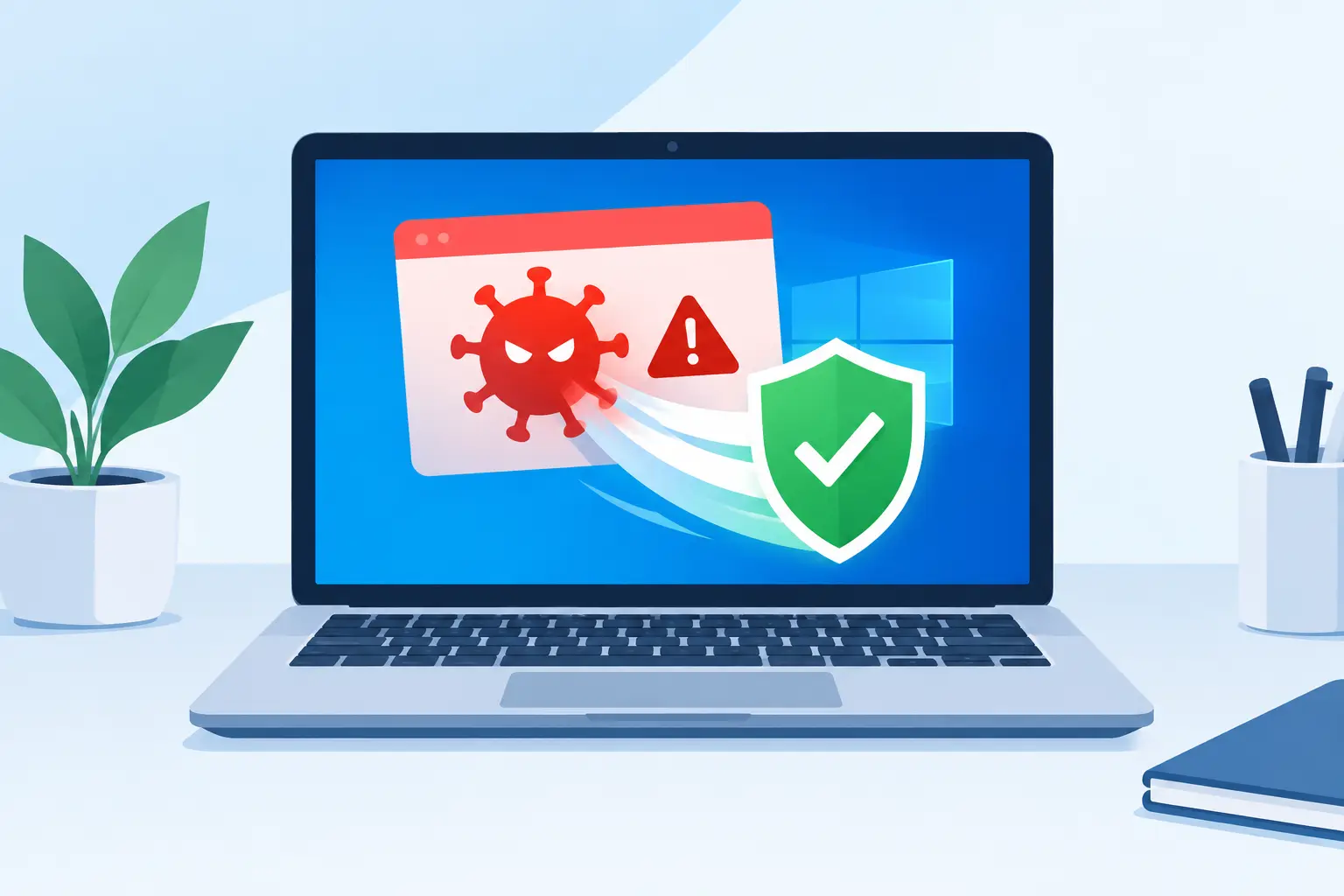
A loud warning that says your computer is infected, your IP address is compromised, or you must call a number immediately is designed to create panic. Real security tools do not normally lock your browser, demand a phone call, or threaten immediate data loss through a pop-up. Fake virus alert removal starts with one rule: do not click the warning, call the number, install anything it suggests, or give anyone remote access to your PC.
Many of these alerts appear while browsing ordinary websites. That does not automatically mean your Windows PC has a virus. The alert may be a malicious ad, a browser notification you accidentally allowed, or a more serious infection. The right next step depends on what happened before, during, and after the pop-up appeared.
What a fake virus alert usually looks like
Fake alerts often copy the colors, logos, and wording of Microsoft, Windows Security, or well-known antivirus companies. They may flash repeatedly, play an alarm sound, show a fake scan, or make it difficult to close the browser. Some say a Trojan was detected. Others claim your bank information or photos are at risk.
The goal is usually one of two things. The scammer wants you to call a fake support number, or they want you to download software that gives them access to your computer. Either outcome can lead to stolen passwords, unwanted charges, or actual malware being installed.
A browser message cannot accurately scan your files and diagnose an infection on its own. Treat any webpage that claims otherwise as suspicious, especially when it demands immediate action.
Fake virus alert removal: first steps to take
Stay calm and avoid interacting with the alert. If there is an obvious close button on the browser tab, use it. Do not click buttons inside the warning that say “remove virus,” “scan now,” “fix,” or “contact support.” Those buttons can lead to another scam page or download.
If the browser will not close normally, press Ctrl + Shift + Esc to open Task Manager. Find your browser, such as Chrome, Edge, Firefox, or another browser you use, select it, and choose End task. This closes the browser without engaging with the pop-up.
When you reopen the browser, do not restore the previous session if it asks. Restoring tabs may load the same scam page again. Open a new blank tab instead.
If you downloaded a file, installed a program, entered a password, provided card information, or allowed a stranger to control your screen, the situation needs more attention. Disconnect the PC from Wi-Fi or unplug the network cable before doing anything else. That can limit additional remote activity while you decide whether to scan the computer or have it checked.
Clean up the browser before the alert returns
A persistent fake warning is often caused by browser notifications or unwanted extensions, not by a deep Windows infection. Start by checking your browser’s notification permissions. Remove or block any site you do not recognize, particularly sites with strange names or sites you do not remember allowing.
Next, review browser extensions. Delete extensions you did not intentionally install or no longer use. Be cautious with extensions that promise coupons, search improvements, video downloads, free security tools, or “PC cleanup.” Some are legitimate, but unwanted extensions commonly change search settings and push misleading ads.
Clearing browser data can also help. Remove cached files and cookies, then restart the browser. Keep in mind that clearing cookies may sign you out of websites, so make sure you know important login information first. If you rely on saved passwords, verify that browser syncing is working before resetting anything.
If the fake alert appears only on one website and disappears after closing that tab, it was likely a bad advertisement or scam page. If it reappears on every browser session, redirects searches, or opens tabs by itself, you may be dealing with adware or a browser setting that needs repair.
Run a real Windows security scan
After closing the alert, run a scan using the security software already on your computer. On most Windows PCs, Windows Security and Microsoft Defender are built in. Update its protection information first if possible, then run a full scan rather than relying only on a quick scan.
A full scan can take time, especially on a PC with a large hard drive or years of stored files. Let it finish and follow the recommended actions for anything it identifies. Restart the computer if Windows asks you to do so.
This is also a good time to install pending Windows updates and update your browser. Security updates close known weaknesses that scammers and malware authors may try to exploit. Updates are not a cure for every infection, but an unpatched computer is easier to target.
Avoid downloading several random “virus removal” programs after seeing a pop-up. Some are legitimate, while others create more confusion, slow the computer down, or are scams themselves. One trusted security scan is a better starting point than filling the PC with unfamiliar tools.
When a pop-up becomes a real security problem
The warning itself may be fake, but the risk changes if you interacted with it. You should take the issue seriously if you gave a caller remote access, installed a program at their request, entered passwords after the alert appeared, or paid for fake support.
Watch for signs such as new programs you do not recognize, a changed homepage or search engine, repeated redirects, a very slow PC, unfamiliar browser extensions, disabled security software, or password-reset emails you did not request. Those symptoms do not prove every case is malware, but they justify a closer inspection.
If you entered a password, change it from a different, known-clean device. Start with your email account, since email password access can be used to reset other accounts. Turn on multi-factor authentication where it is available. If payment information was shared, contact your bank or card provider directly using the number on the card or official statement, not a number shown in the pop-up.
For home-office users and small businesses, consider whether the affected PC had access to work email, shared files, customer records, or saved VPN credentials. A quick cleanup may not be enough when business accounts or sensitive information are involved. It may be safer to have the system evaluated before reconnecting it to a work network.
When professional malware removal makes sense
You do not need professional help for every fake alert. If the browser closes, notification permissions are cleaned up, and a trusted scan finds nothing, the problem may be resolved. Still, there are situations where a hands-on diagnosis is the less stressful option.
Professional malware removal is worthwhile when the computer remains slow or unstable, the warning returns after cleanup, files are missing or encrypted, security software will not run, or someone had remote access to the PC. It is also a sensible choice when the computer contains irreplaceable photos, school work, tax documents, or business files. Removing malware without checking the system for damage can leave behind problems that show up later.
A technician can review startup items, installed software, browser settings, active threats, and storage health, then explain whether cleanup, data recovery, an SSD upgrade, or replacement is the practical next step. The answer is not always “replace the computer.” Many Windows PCs can be cleaned up and made dependable again when the underlying issue is caught early.
For Vienna and nearby Northern Virginia residents, PC Pick N Fix can provide clear next-step recommendations without making the problem sound more complicated than it is. Bring the symptoms you noticed, any phone number or message shown in the alert, and a note of anything you clicked or installed. That information helps identify whether this was only a browser scam or a real infection.
The most useful response to a fake virus alert is a careful one: close it without clicking, scan with trusted protection, and get help if the computer or your accounts still do not feel right. A little caution now can protect the files and access you depend on every day.