SSD Upgrade for an Old Laptop: Is It Worth It?
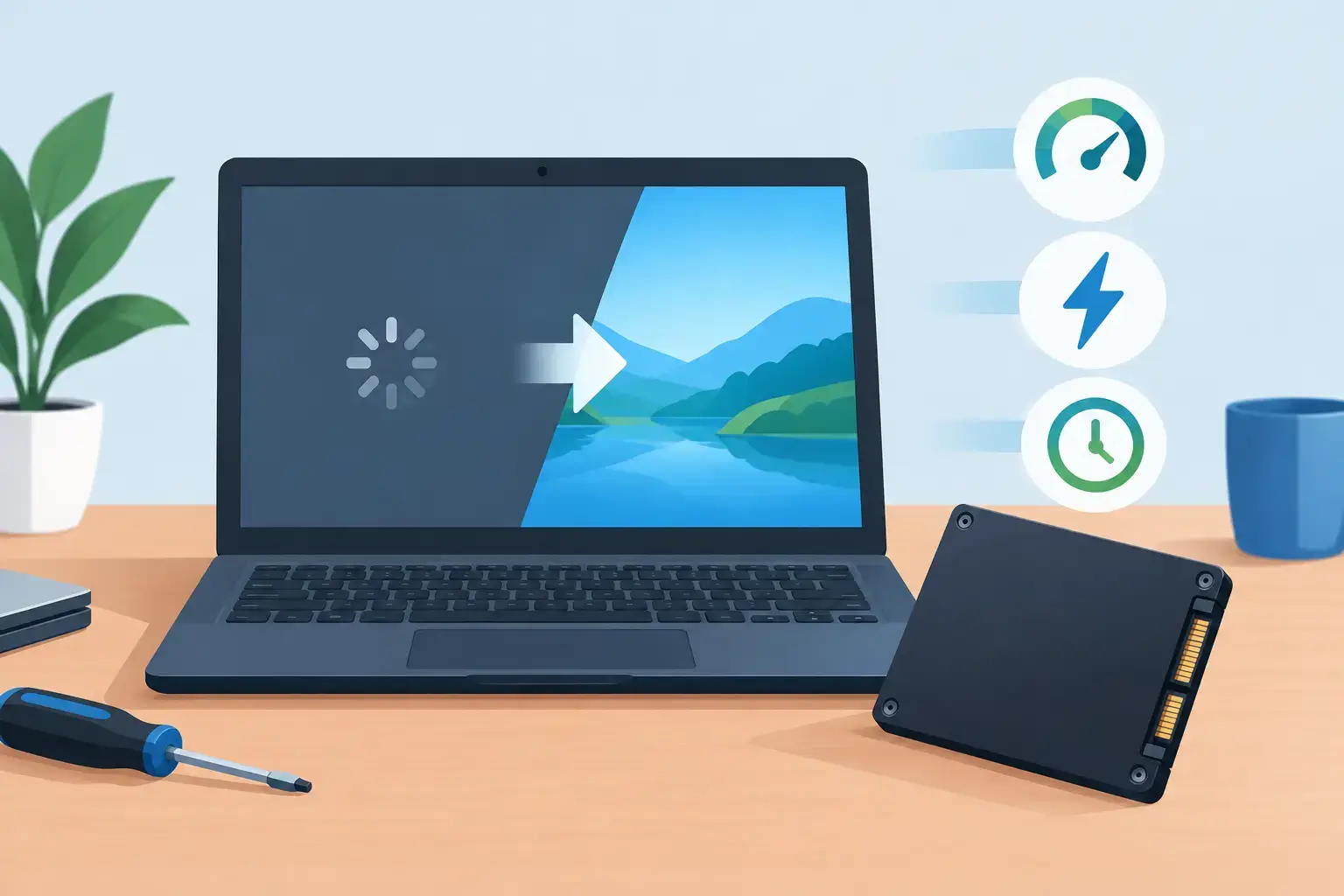
A laptop that takes five minutes to start, freezes while opening email, or struggles with a few browser tabs is frustrating. Before replacing it, consider an SSD upgrade for an old laptop. For many Windows laptops, replacing a mechanical hard drive with a solid-state drive is the single biggest improvement you can make for everyday speed.
It will not turn a 10-year-old laptop into a new gaming machine, and it cannot fix every problem. But when the rest of the computer is in decent shape, an SSD can make work, school, web browsing, and basic home use feel noticeably less painful.
What an SSD Upgrade Changes
Older laptops often use a traditional hard disk drive, sometimes called an HDD. It stores files on spinning disks with moving parts. That design was standard for years, but it is much slower than a modern SSD, which uses flash storage and has no moving parts.
The difference is most obvious in the little waits that add up throughout the day. Windows can start faster, applications can open more quickly, and files can load with less delay. A laptop that constantly shows a spinning circle while you try to work may become usable again after the drive is replaced.
An SSD also tends to be quieter and more resistant to damage from bumps or drops because there are no spinning parts inside. For someone carrying a laptop between home, school, and the office, that is a practical bonus.
The improvement depends on the computer's overall condition. If the laptop is slow because it has too little memory, a virus, overheating, failing hardware, or a very old processor, an SSD alone may not solve the whole problem. A clear diagnosis matters before spending money on parts.
Is Your Old Laptop a Good Candidate?
Age alone does not decide whether an upgrade is worthwhile. A well-built laptop from several years ago can still handle email, Microsoft Office, streaming, online classes, bookkeeping, and everyday browsing very well. The question is whether the laptop meets your needs after its storage bottleneck is removed.
An SSD upgrade is usually a strong option when the laptop starts normally, its screen and keyboard are in good condition, the battery is at least usable, and it can run a supported version of Windows. It is especially helpful when Task Manager shows the disk sitting near 100% usage during ordinary tasks.
You may want to consider replacement instead if the laptop has multiple serious issues at once. A cracked display, damaged hinges, a failing battery, very limited RAM, unsupported software, and a slow processor can make a larger repair investment hard to justify. There is no value in installing a new drive only to find the computer still cannot handle the programs you rely on.
For a home-office user in Vienna or Northern Virginia, the practical test is simple: will this laptop do the job once it is faster? If the answer is yes, repairing before replacing can save money and avoid the hassle of setting up a completely new computer.
Check Compatibility Before Buying an SSD
Not every drive fits every laptop. Many older machines accept a 2.5-inch SATA SSD, while some newer laptops use a smaller M.2 drive. M.2 drives can use different connections, so size alone does not confirm compatibility.
Before choosing a drive, check these details:
- The laptop model number and service manual information
- The current drive type and physical size
- Whether the laptop has a 2.5-inch SATA bay or an M.2 slot
- The storage capacity you actually need
- Whether there is room to add a drive or whether the old drive must be replaced
Capacity is worth thinking through. A 500GB SSD works well for many people who mostly use documents, photos, email, and cloud storage. A 1TB drive may make more sense for large photo libraries, local backups, games, videos, or business files. Buying the smallest possible drive can create a new storage problem sooner than expected.
Compatibility can also affect cost. SATA SSDs remain an excellent upgrade for many older laptops and are still dramatically faster than a hard drive. You do not need the newest high-speed drive if the laptop cannot use it.
The Part People Forget: Your Files
The drive replacement itself is often straightforward. Protecting your data is the part that deserves care.
If your old hard drive is healthy enough, the usual approach is to copy its contents to the new SSD. This can preserve Windows, installed programs, user profiles, documents, and many settings. After the transfer, the laptop starts from the SSD with a familiar desktop rather than requiring you to rebuild everything from scratch.
However, copying is not always the right choice. If the existing Windows installation has malware, severe errors, years of unnecessary software, or signs of file corruption, a clean installation may be the better path. Your personal files can still be backed up, but Windows and programs are installed fresh. That takes more setup time, yet it can provide a cleaner result.
A failing hard drive changes the situation. Clicking sounds, frequent crashes, missing files, extremely slow access, or messages saying Windows cannot find a drive are warning signs. Do not keep restarting the laptop and hoping it improves. Every extra attempt can make data recovery more difficult. Back up what you can and have the drive assessed before an upgrade is attempted.
SSD Upgrade for an Old Laptop: What to Expect
Most people notice the improvement right away. Startup and sign-in times shrink. Programs such as Word, Outlook, Chrome, and accounting software respond sooner. Windows updates and background tasks may still take time, but the laptop should spend less time feeling stuck.
What an SSD does not improve is just as useful to understand. It does not add RAM, repair a weak Wi-Fi connection, fix a failing charger, or make an older integrated graphics chip suitable for demanding games. If your laptop runs out of memory whenever several programs are open, adding RAM may be worth discussing at the same time.
For gamers, an SSD can reduce game load times and make Windows more responsive, but it will not raise frame rates in a game limited by the graphics card or processor. For business users, the bigger payoff is often reliability and less waiting during the workday.
Should You Install It Yourself?
A confident DIY user can install an SSD in some laptops with basic tools and careful instructions. The risk is not just opening the bottom cover. Small screws, fragile clips, internal batteries, drive brackets, Windows licensing, and data transfer steps all create opportunities for a simple job to become a frustrating one.
Professional help is especially useful when the laptop contains important work files, family photos, tax records, or business data. It is also a smart choice when the computer has startup problems, the old drive may be failing, or you are unsure which SSD fits.
A local technician can check the laptop's condition, recommend the right capacity and drive type, back up or transfer your data, install the SSD, and test the system after the work is complete. That approach avoids guessing whether the laptop is worth saving in the first place.
Make the Upgrade Last
Once the SSD is installed, leave some free space on it instead of filling it to the limit. Keep Windows and security software updated, remove programs you no longer use, and maintain a separate backup for important files. An SSD is more reliable than a mechanical hard drive in many ways, but no storage device is a substitute for a backup.
If your laptop is slow but otherwise dependable, an SSD upgrade can be the repair that changes your mind about replacing it. PC Pick N Fix can help Northern Virginia customers get a clear answer on compatibility, data safety, and whether an upgrade is the sensible next step for the computer they already own.