
Computer Will Not Turn On? Start Here
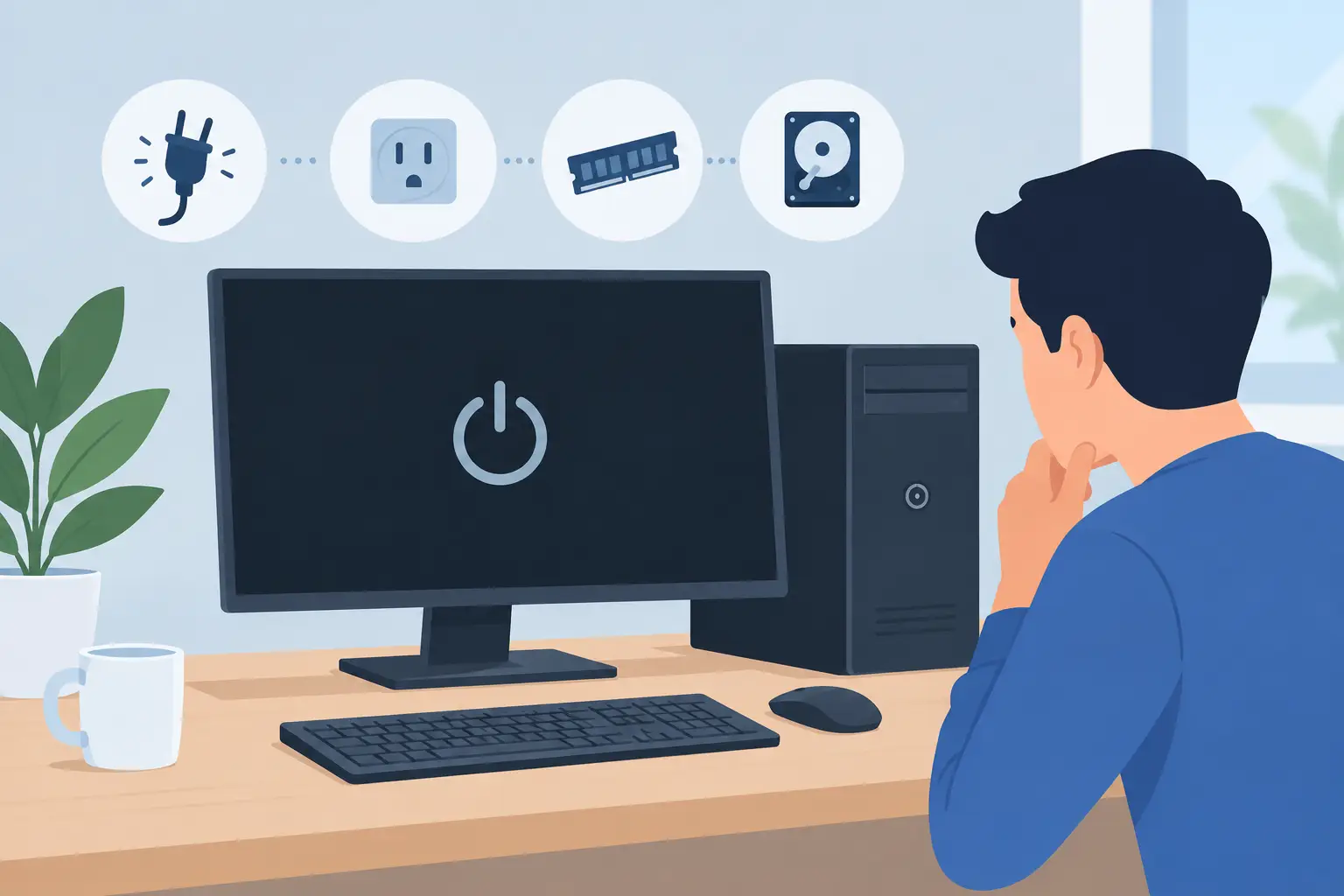
A computer that will not start can stop a workday before it begins. You press the power button, wait for the familiar lights or fan noise, and get nothing. Before assuming the computer is dead or your files are gone, take a breath. Many no-power problems come down to a loose connection, a failed charger, a drained battery, or a display issue that looks more serious than it is.
The key is to identify what the computer is actually doing. Does it show no sign of life at all? Does it light up but show a black screen? Does it begin to start and immediately shut down? Those are different symptoms, and they point to different next steps.
First, Make Sure the Computer Has Power
When a computer will not turn on, start with the simple checks that do not require opening the case or removing parts. A power issue is often external, especially after moving a desk setup, traveling with a laptop, or losing power during a storm.
Work through these checks one at a time:
- Plug the computer or charger directly into a known-working wall outlet. Power strips and surge protectors can fail or get switched off.
- Check both ends of the charging cable or desktop power cord. A connection can look plugged in while still being loose.
- For a laptop, look for a charging light. If there is no light, try another compatible charger if one is available.
- Disconnect USB devices, docking stations, printers, external drives, and game controllers. A faulty accessory can occasionally prevent startup.
- Hold the power button down for 15 to 20 seconds, then reconnect power and try again. This can clear residual power from the system.
For desktop PCs, check the small power switch on the back of the power supply. It should be set to the line symbol, not the circle. If the computer is connected to a battery backup unit, test by plugging directly into the wall temporarily.
Do not keep pressing the power button repeatedly. If there is a power supply or motherboard fault, repeated attempts rarely fix it and can make it harder to notice useful clues, such as a blinking light, a beep, or a brief fan spin.
The Computer Has Lights but the Screen Is Black
A black screen does not always mean the computer itself failed. The PC may be turning on normally while the monitor, cable, graphics connection, or laptop display is the real problem.
On a desktop, confirm that the monitor has power and that its input is set correctly. Many monitors have more than one input, such as HDMI, DisplayPort, or VGA. If the computer was moved or a cable was replaced, the monitor may be looking at the wrong input. Reseat the video cable at both ends and, if possible, test with another cable or monitor.
If your desktop has a dedicated graphics card, make sure the display cable is connected to the graphics card rather than the motherboard video port. The ports are often close together, but they are not interchangeable on every system.
For a laptop, increase the brightness and disconnect any external monitor or docking station. Some laptops can send the picture to an external display even after that display has been disconnected. If you hear fans, keyboard lights, or Windows startup sounds but see nothing, the laptop may have a screen, backlight, graphics, or memory issue rather than a complete no-power problem.
It Starts, Then Shuts Off or Restarts
If the computer turns on for a few seconds and then shuts down, pay attention to when it happens. A system that powers off before showing a logo may have a hardware issue. One that reaches Windows and then restarts may be dealing with software, a failing drive, overheating, or a recent update problem.
Overheating can cause a computer to shut down to protect itself. Check that air vents are not blocked by a blanket, carpet, papers, or dust buildup. A gaming PC that suddenly powers off under load may have a cooling issue or a power supply that can no longer handle the system's demand. That does not automatically mean the whole computer needs replacement.
Memory problems can also cause startup loops, blank screens, or repeated beeping. Desktop owners who are comfortable opening a case can check whether RAM modules appear loose after a move. However, avoid removing components if you are unsure of the process, especially on a laptop. Tiny connectors, internal batteries, and damaged screws can turn a repairable problem into a more expensive one.
What Not to Do When Your Computer Will Not Turn On
The urge to fix the problem quickly is understandable, particularly if you have work files, school assignments, family photos, or business records on the device. A few common moves can create unnecessary risk.
Do not open a power supply unit. Even when unplugged, it can retain dangerous electrical charge. Do not force a damaged charging port, use a random charger with an incorrect rating, or continue powering on a computer that smells burnt, clicks repeatedly, sparks, or becomes unusually hot. Unplug it and get it checked.
Also, do not assume that a computer that will not start has lost its data. In many cases, files are still intact on the internal drive even when the charger, screen, power supply, motherboard, or another component has failed. A clear assessment should separate the startup repair from the question of data recovery, so you can make an informed decision.
Laptop Problems Often Start With the Charger or Battery
Laptops add a few likely trouble spots. Inspect the charger cable for fraying, bent connector tips, or areas that only work when held at a certain angle. If the charging port feels loose or the charging indicator flickers when the plug moves, the port may need repair.
An aging battery can also make a laptop appear completely dead. Some models will still run on AC power with a weak battery, while others need the internal battery disconnected or replaced before they behave normally again. The right answer depends on the model and the exact symptoms.
If liquid was spilled on the laptop, stop testing it. Turn it off if it is still on, unplug it, and do not try to dry it with a hair dryer. Heat can push moisture deeper into the device. Fast professional cleaning and inspection gives the best chance of preventing corrosion and protecting your files.
When It Is Time for Local Repair Help
A basic power check is worthwhile. Beyond that, professional diagnosis is usually the safer choice if there are no lights or fan activity with known-good power, the computer starts and immediately dies, there is a burning smell, or the system has important data you cannot risk.
A technician can test the charger, battery, power supply, motherboard, storage drive, RAM, display path, and other components without guessing. For older desktops and laptops, the best recommendation may be a targeted repair or an SSD, RAM, or storage upgrade rather than replacement. For a gaming PC, it may be a graphics card, cooling, or power issue that can be isolated and repaired.
For people in Vienna and nearby Northern Virginia communities, PC Pick N Fix provides direct local help for laptop, desktop, Windows PC, and gaming PC startup problems. The goal should be simple: identify what failed, explain the practical options, and protect your data wherever possible.
If your computer is needed for work, school, or a small business, do not wait until a minor symptom becomes a complete outage. Write down what happened before it stopped turning on, including any recent updates, drops, power outages, strange noises, or error messages. That short history can make the next diagnosis faster and clearer.