How Much RAM Do I Need for a Faster Computer?
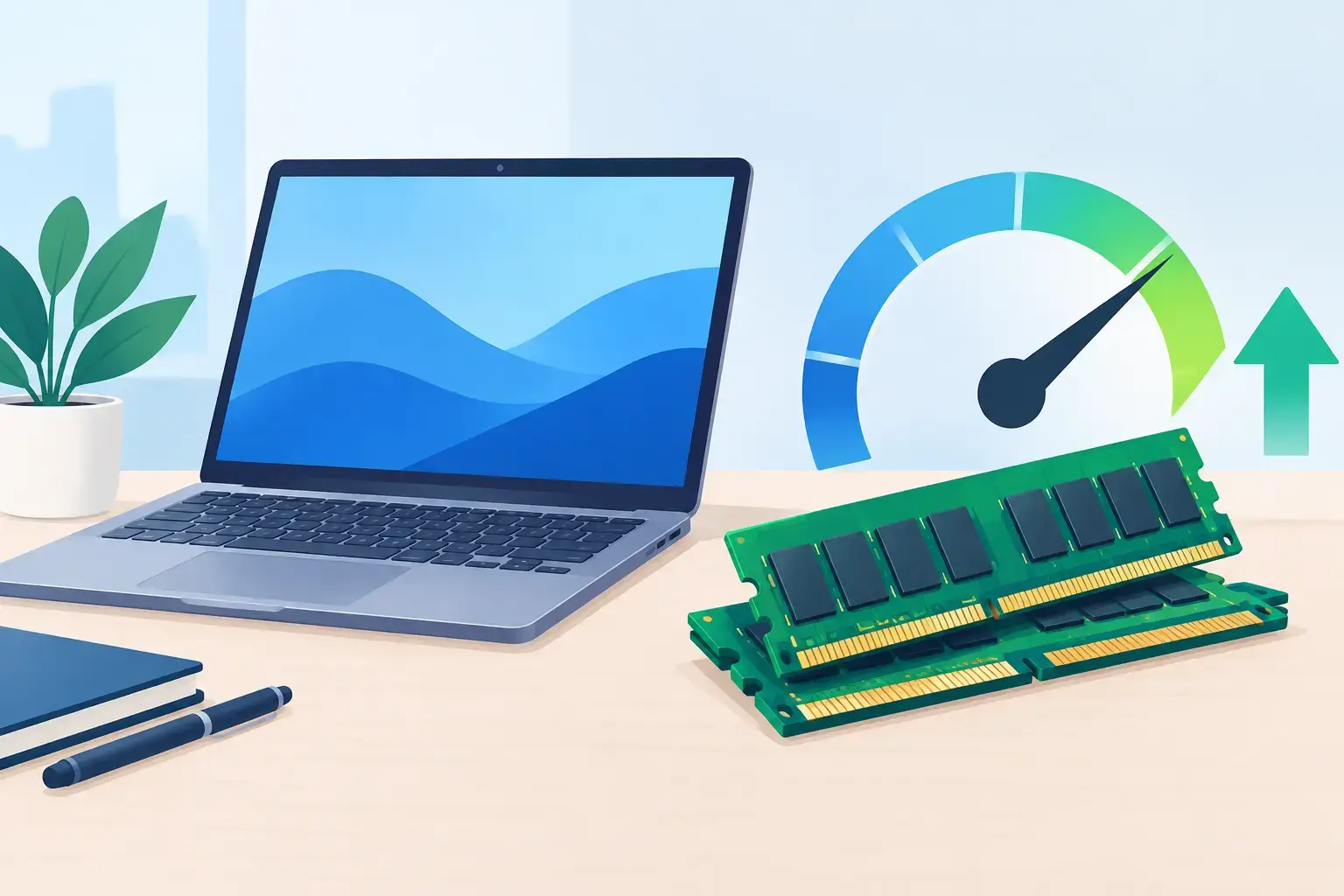
Your computer can have a fast internet connection and plenty of free storage, yet still freeze when you open a few browser tabs, a video call, and a spreadsheet. That is often a memory problem. If you are asking, “how much RAM do I need,” the right answer depends less on the age of the computer and more on what you expect it to do at the same time.
RAM is one of the upgrades that can make a noticeable difference, especially on a Windows PC that slows down during everyday multitasking. But adding more RAM is not a cure for every slow computer. A full hard drive, a failing SSD, too many startup programs, overheating, malware, or an older processor can create similar symptoms. The goal is to match the upgrade to the actual problem.
What RAM Does for Your Computer
RAM, short for random access memory, is your computer’s short-term workspace. It holds the programs, files, browser tabs, and background tasks you are using right now. When there is not enough available RAM, Windows starts relying more heavily on storage space as temporary memory. That process is much slower, which is why a PC may pause, stutter, or take a long time to switch between open programs.
Think of RAM as desk space. A larger desk does not make every task easier, but it gives you room to keep more work in front of you without constantly putting things away and bringing them back. More RAM helps most when you regularly have several demanding tasks open at once.
A computer that is slow from the moment it starts may have a different issue. If it has an old mechanical hard drive instead of an SSD, an SSD upgrade may deliver a bigger improvement than memory alone. Clear diagnosis matters before spending money on parts.
How Much RAM Do I Need for Everyday Use?
For basic web browsing, email, online banking, documents, streaming, and light schoolwork, 8GB is the practical minimum for a Windows computer. It can work well for a person who keeps a reasonable number of browser tabs open and does not run demanding programs in the background.
That said, 8GB can feel tight now. Modern browsers use more memory than many people expect, especially with multiple tabs, video sites, cloud storage tools, and browser extensions running. Windows updates, security software, and video meetings also use part of the available memory. If your 8GB laptop becomes sluggish when you join a Zoom or Teams call while working in Chrome or Microsoft Office, the system may simply be running out of room.
For most households, students, home-office users, and small-business users, 16GB is the better target. It gives your PC breathing room for typical multitasking: browser tabs, Word or Excel, email, video calls, PDF files, cloud syncing, and music or streaming in the background. It is also a sensible choice if you want a computer to remain comfortable to use for several more years.
RAM Recommendations by What You Do
The best amount of RAM changes with the workload. A person checking email has different needs from a gamer running Discord, a browser, and a current game at the same time.
Basic home use: 8GB to 16GB
Choose 8GB if your needs are truly light and your computer otherwise works well. Choose 16GB if you use lots of browser tabs, attend frequent video meetings, share the computer with family members, or just want fewer slowdowns. For many everyday Windows PCs, moving from 8GB to 16GB is the sweet spot.
Work, school, and home office: 16GB
Sixteen gigabytes is a strong fit for most office work. It handles large spreadsheets, multiple Office apps, web-based business tools, video calls, accounting software, and a healthy number of open tabs without forcing you to constantly close things.
Some work computers need more. If you work with unusually large Excel files, multiple virtual desktops, database tools, engineering applications, or several monitors packed with active windows, 32GB can be worthwhile. More memory will not make a slow internet connection faster, but it can prevent your computer from bogging down while you work.
Gaming PCs: 16GB to 32GB
For most current PC games, 16GB remains a good starting point. It is usually enough for gaming with normal background apps, although keeping dozens of browser tabs open while playing can still create slowdowns.
Thirty-two gigabytes makes more sense for newer demanding games, modded games, game streaming, recording gameplay, or multitasking while you play. It also provides useful headroom if you plan to keep the gaming PC for several years. Going beyond 32GB is rarely necessary for gaming alone, unless the computer is also used for professional editing, 3D work, or virtual machines.
Photo, video, design, and technical work: 32GB or more
Creative and technical applications can consume memory quickly. Editing high-resolution photos, working in Adobe applications, producing video, using CAD software, running virtual machines, or handling large data sets can justify 32GB. Heavy 4K video editing, complex 3D rendering, and several virtual machines may benefit from 64GB or more.
Here, it helps to look at your actual workflow instead of buying the largest number available. If an editing program reports low-memory warnings, crashes under large projects, or slows down whenever you add files or effects, additional RAM may help. If exporting is slow but everything else feels normal, the processor, graphics card, or storage drive may be the bigger limitation.
Signs You May Need More RAM
A lack of RAM usually shows up during multitasking, not necessarily when you first turn on the PC. Your computer may hesitate when switching between programs, browser tabs may reload after you leave them, or a video call may become choppy when you open other applications. You may also hear the fan working harder as the system struggles under a heavier workload.
Windows Task Manager can provide a useful clue. Open it with Ctrl + Shift + Esc, select the Performance tab, and choose Memory. If memory usage regularly sits near 90% or 100% while you are doing your normal work, a RAM upgrade may help. Check it when the computer feels slow, not when it is sitting idle.
High memory use alone is not always bad. Windows uses available RAM to keep commonly used information ready, and the percentage may rise during demanding tasks. The concern is persistent high use paired with real symptoms such as freezing, lagging, program crashes, or constant disk activity.
Before You Buy a RAM Upgrade
Not every computer can take additional memory, and not all RAM modules work together. Laptops may have one or both memory slots soldered to the motherboard. Some compact desktops have limited space. Older systems may use DDR3, while many newer PCs use DDR4 or DDR5. These types are not interchangeable.
You also need to know how much RAM is installed, how many slots are available, the maximum memory the computer supports, and the proper speed and form factor. Desktop memory and laptop memory are physically different. Mixing modules with different speeds or capacities can work in some cases, but it can also reduce performance or cause instability.
For best results, compatible matched memory is usually preferable. On many PCs, installing two matching modules lets the system use dual-channel memory, which can improve performance. A gaming PC or workstation can benefit from that extra bandwidth, but compatibility and stability should come first.
If your computer has 4GB or less, upgrading to 8GB or 16GB may be a clear improvement if the device supports it. Still, an older PC with a failing hard drive, battery issues, or an unsupported version of Windows may need a broader repair-versus-replacement conversation.
When More RAM Will Not Fix a Slow Computer
RAM is often blamed for problems caused by storage. A PC with a traditional hard drive may take several minutes to start, open programs slowly, and feel unresponsive even when memory usage is low. Replacing that drive with an SSD is often the single most noticeable speed upgrade for an older desktop or laptop.
Malware can also consume system resources, generate pop-ups, change browser behavior, and slow everything down. So can too many startup programs, low free disk space, overheating, Windows errors, or a drive beginning to fail. If your computer suddenly became slow rather than gradually feeling limited, it is worth checking for those issues first.
A professional assessment can prevent a frustrating upgrade that does not solve the problem. PC Pick N Fix can check whether a RAM upgrade, SSD installation, malware cleanup, or another repair is the sensible next step for your Windows PC or gaming computer.
More RAM should make your computer feel less cramped, not magically turn an aging machine into a brand-new one. Start with how you actually use the PC, watch for slowdowns during normal multitasking, and choose the upgrade that addresses the reason it is struggling.