
7 Laptop Not Charging Repair Checks to Try
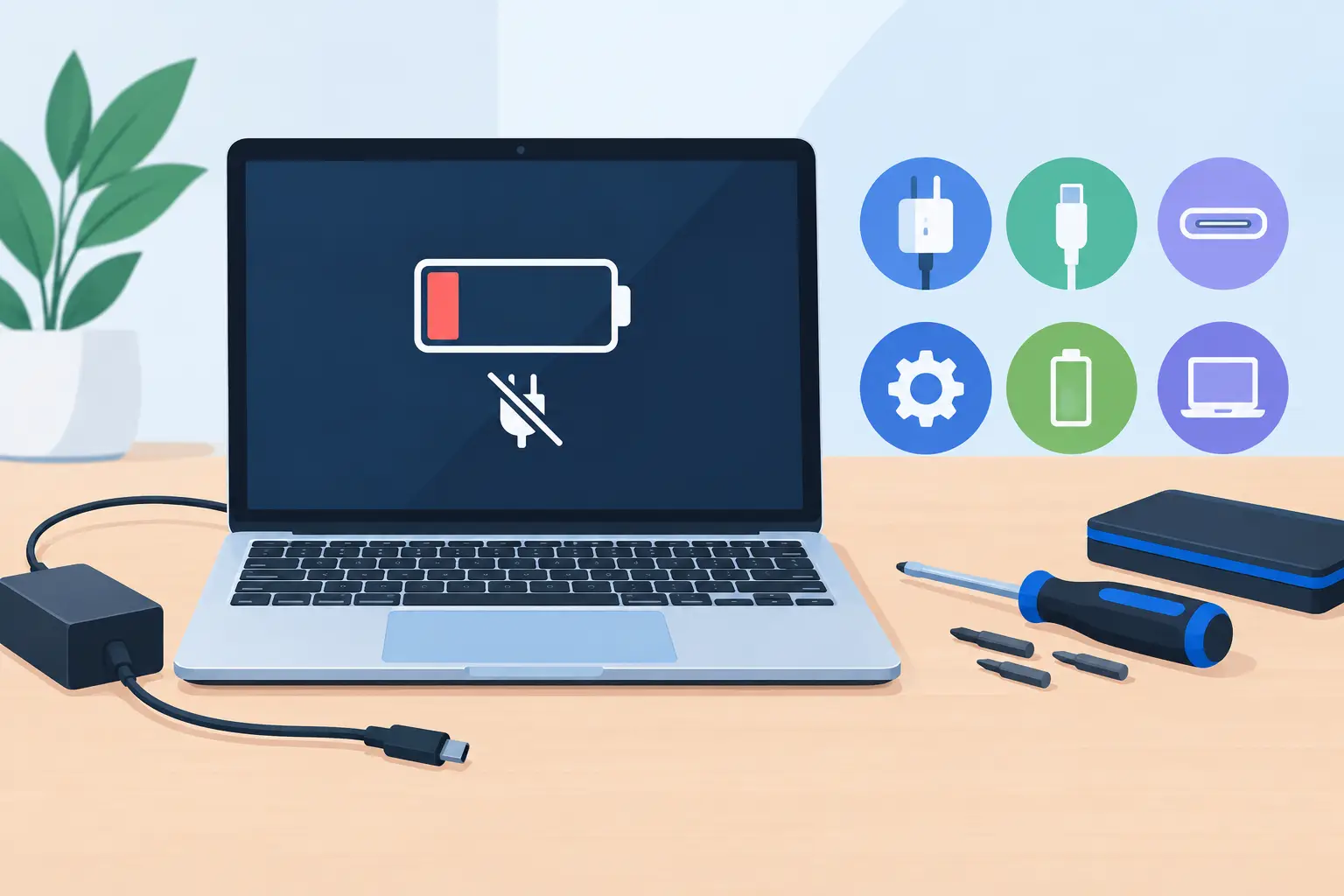
A laptop that runs only when it is plugged in, refuses to charge past 0%, or suddenly shows “plugged in, not charging” can stop work and school fast. Laptop not charging repair is often simpler than people expect, but the symptom can also point to a worn battery, failed charger, damaged charging port, or an internal power problem. The goal is to rule out the easy causes safely before paying for parts you may not need.
Start With the Power Source and Charger
Before assuming the laptop battery has failed, check the outlet and the charger setup. Plug a lamp or phone charger into the same wall outlet to confirm the outlet works. If you are using a power strip, bypass it and plug the laptop charger directly into the wall. Power strips can fail or deliver inconsistent power without making the problem obvious.
Then inspect the charger from end to end. Look for a bent connector, exposed wiring, fraying near the power brick, or a cord that gets unusually hot. On many Windows laptops, a damaged cable can still supply enough power to keep the computer running while failing to charge the battery.
Make sure you are using the correct charger. USB-C laptops are especially prone to confusion because many chargers fit the same port but do not provide the same wattage. A low-wattage phone charger may show a charging icon while barely keeping up with the laptop's power use. If the battery percentage continues to drop while plugged in, test with the manufacturer-approved charger or a quality charger that matches the required wattage.
Watch for a loose connection
Gently connect the charger and see whether the charging light flickers or Windows repeatedly switches between battery and AC power. Do not force or twist the plug. A connection that works only at a certain angle can indicate a worn cable tip or a loose charging port. Continuing to use it that way can turn a small repair into a board-level problem.
Check What Windows Is Telling You
A message such as “plugged in, not charging” does not automatically mean the battery is dead. Windows may be protecting the battery, reporting an incorrect status, or reacting to a driver issue.
First, restart the laptop with the charger connected. A full restart can clear a temporary power-management problem that sleep mode does not. Once it restarts, click the battery icon and note the message. Is the battery percentage rising, staying fixed, or falling? Those details help narrow down the cause.
Some laptop brands also include battery-care settings in their own utility software or BIOS. These settings may limit charging to 60% or 80% to reduce long-term battery wear. That is useful for a laptop that stays on a desk most of the time, but it can look like a charging failure if you do not know the limit is enabled. If your laptop consistently stops at the same percentage, check its battery health or charging-limit setting before replacing anything.
Reset the battery driver carefully
If your laptop recognizes the charger but will not charge, you can try a basic driver reset in Windows Device Manager. Under Batteries, uninstall the Microsoft ACPI-Compliant Control Method Battery entry, then restart the laptop. Windows should reinstall it automatically.
This step can fix a reporting issue, but it will not repair a physically failing battery or charging port. If the laptop shuts down as soon as the charger is removed, save your work first and avoid relying on this as a permanent fix.
Know the Signs of a Failing Battery
Laptop batteries wear out. Heat, frequent full discharge, age, and constant heavy workloads all shorten their usable life. Many batteries last several years, but there is no single expiration date. A gaming laptop used daily may wear through its battery faster than a lightly used home-office machine.
Common battery-failure signs include a battery percentage that jumps suddenly, a laptop that dies well before reaching 0%, very short runtime, or a battery that refuses to charge above a low number. A swollen battery is more urgent. You may notice the bottom case separating, the trackpad lifting, or the laptop no longer sitting flat on a desk.
If you suspect swelling, stop using and charging the laptop. Do not press the case closed or attempt to puncture or remove the battery yourself. A swollen lithium-ion battery needs prompt, careful service.
Battery replacement is often a sensible laptop not charging repair when the computer itself is otherwise in good shape. It is less attractive on an older laptop that also has startup failures, severe overheating, or expensive motherboard damage. A technician should explain that trade-off clearly instead of treating every no-charge problem as an automatic battery sale.
When the Charging Port Is the Problem
The charging port takes daily wear, particularly on laptops moved between home, school, and the office. If the plug feels loose, pushes in farther than usual, or falls out easily, the port may be damaged. Dirt or debris can also block a secure connection.
Do not insert metal objects into the port to clean it. Turn the laptop off and use only a gentle visual inspection. If you can see packed lint or the port appears bent, professional cleaning or repair is the safer path. USB-C ports can be especially delicate because their internal pins are small and easy to damage.
A failed charging port may be a standalone repair, but on some thin laptops it is soldered directly to the motherboard. That changes the cost and repair approach. A good diagnosis identifies whether the issue is the port, the DC-in cable, the battery, or the charging circuit before any work begins.
Rule Out Heat and Heavy Power Use
A laptop can appear not to charge when it is working harder than the charger can support. This is most common with gaming PCs, video editing laptops, and systems running demanding software. If the battery drains while you play a game or render a project, test it while the laptop is idle. If it charges normally at idle, the charger may be underpowered, aging, or not the correct model.
Heat matters, too. A laptop may pause charging when its battery is too hot or too cold. Let it cool on a hard, open surface, away from blankets and couch cushions that block airflow. If fan noise is constant, the case is very hot, or the laptop throttles and shuts down, address the cooling issue rather than focusing only on the battery.
Avoid These Common DIY Mistakes
It is reasonable to check the outlet, charger, Windows status, and battery settings. It is not a good idea to keep buying random replacement chargers or batteries until something works. Off-brand parts can be incompatible, low quality, or unsafe.
Avoid opening a laptop if you are unsure whether its battery is internal, glued in place, or swollen. Do not keep bending a charger cable to find the “right” position. Also avoid repeatedly draining the battery to zero in an attempt to recalibrate it. Modern lithium-ion batteries do not benefit from deep discharges, and a laptop that loses power unexpectedly can corrupt files.
If your laptop still turns on, back up important documents before the issue gets worse. A charging problem does not automatically mean data loss, but an unreliable power system can create risk, especially if the computer is already shutting down without warning.
When to Get Local Laptop Charging Help
Professional help makes sense when a known-good charger does not work, the port is loose, the battery is swollen, the laptop has liquid damage, or the device only runs on AC power. It is also the right move when the repair decision is unclear. For example, replacing a battery may be worthwhile on a capable laptop with an SSD and enough memory, while an older system may be better served by a repair-and-upgrade plan or replacement recommendation.
For Vienna and Northern Virginia customers, PC Pick N Fix can assess the charger, battery, port, and internal power hardware and give clear next-step recommendations. The point is not to make a simple problem sound complicated. It is to find the real cause, protect your files, and help you decide whether repair is the practical choice.
A laptop that will not charge is disruptive, but it does not always mean the computer is finished. Start with the safe checks, pay attention to the exact symptoms, and get hands-on help before a loose connection or worn battery becomes a bigger problem.