
Computer Overheating Repair Service Near You
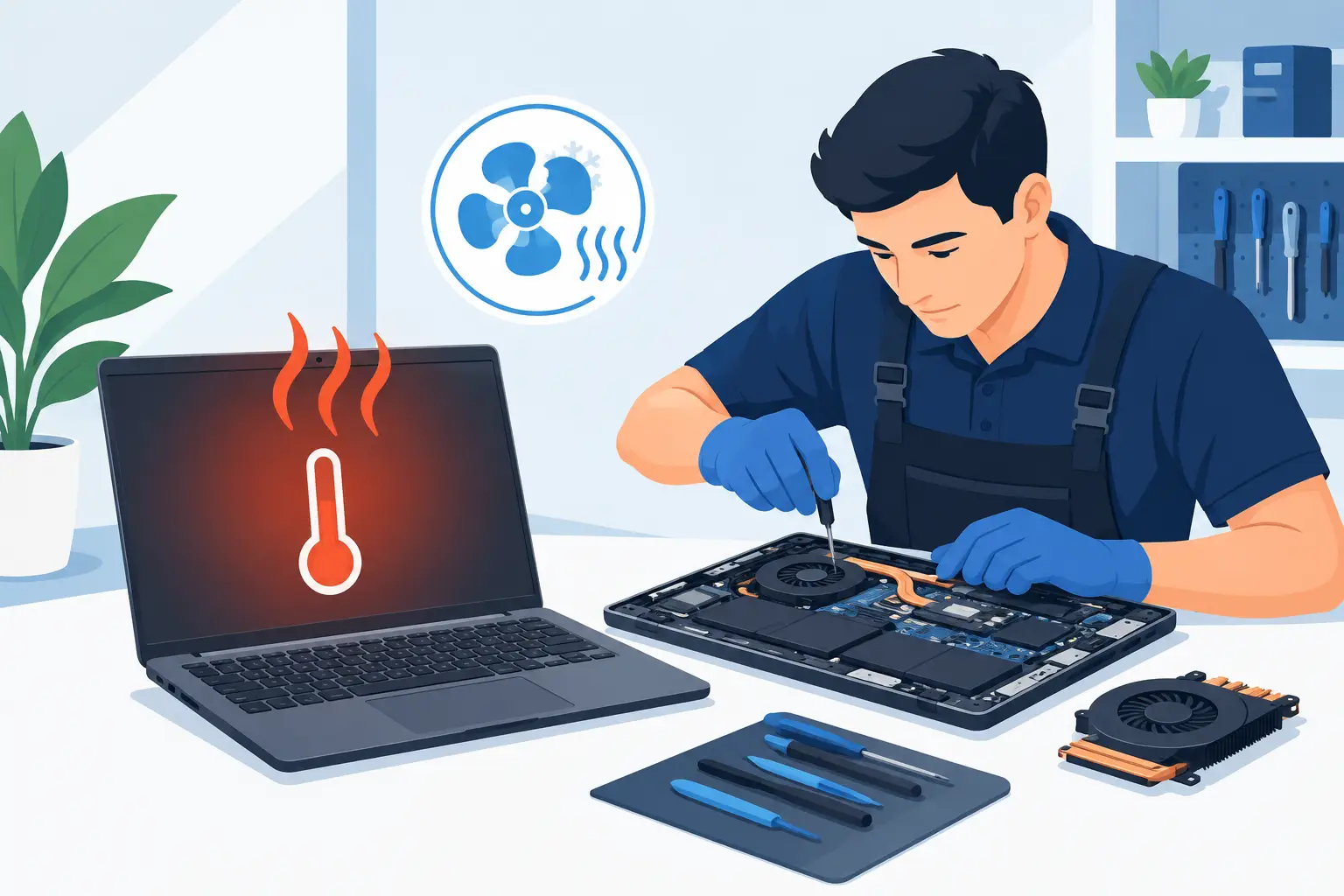
A laptop that feels too hot to touch, a desktop that suddenly sounds like a vacuum, or a gaming PC that shuts down halfway through a match is not just annoying. Heat can shorten the life of internal parts and put your files at risk if the computer starts crashing. A computer overheating repair service can identify whether the issue is simple dust buildup, a worn fan, aging thermal paste, a failing power supply, or something more serious.
For households, home-office users, students, and small businesses around Vienna and Northern Virginia, the goal is usually simple: get the computer stable again without paying to replace a device that can still be repaired.
What Computer Overheating Looks Like
Overheating does not always mean you will see smoke or receive a clear warning message. Often, the signs start small and become more frequent over time. Your computer may run loudly during basic web browsing, slow down after it has been on for a while, freeze, restart without warning, or turn itself off completely.
Laptops can become especially warm around the keyboard, bottom panel, or side vents. On a desktop, you may hear fans spinning at full speed even when you are not doing demanding work. Gamers might notice frame-rate drops, stuttering, crashes, or a system that powers off during a game that used to run normally.
These symptoms can also overlap with malware, low storage space, driver problems, or failing hardware. That is why guessing based on one symptom can lead to the wrong fix. A proper diagnosis looks at temperatures, fan operation, airflow, software activity, and the condition of the hardware together.
Why Computers Overheat
Heat is a normal part of computer operation. Processors, graphics cards, batteries, and power components all create it. The problem begins when that heat cannot move out of the system efficiently.
Dust and blocked airflow
Dust is one of the most common causes, particularly in homes with pets, carpeting, or older desktops. It collects in vents, on fan blades, and between cooling fins. A thin layer can reduce airflow. A heavy buildup can turn a cooling system into a blockage.
A laptop used on a bed, couch, blanket, or lap can also pull in fabric fibers and block the intake vents. Even a clean laptop can overheat when its vents are covered during use.
Failing fans or cooling parts
Fans wear out. They may make a grinding noise, spin inconsistently, or stop entirely. A desktop can also have a loose cable, damaged fan connector, or fan controller issue. If a fan is not doing its job, the system may throttle performance to protect itself or shut down before a component is damaged.
Thermal paste is another common issue in older computers. This material helps transfer heat from a processor or graphics chip to its heat sink. Over time, it can dry out and become less effective. Replacing it requires careful disassembly, especially in compact laptops and gaming systems.
Demanding software and hidden activity
Sometimes the cooling system is working, but the computer is under constant load. A game, video editor, browser tab, Windows process, or malware infection can keep the processor or graphics card working harder than expected. A computer that runs hot only when one program is open may need a software review rather than a fan replacement.
This is also why a quick dust cleaning is not always the complete answer. If the computer is overheating because malicious software is using system resources, malware removal and a system tune-up may be part of the repair path.
Aging hardware or an undersized setup
Older computers may struggle with current applications, especially if they have limited RAM, a mechanical hard drive, or an entry-level cooling design. A gaming PC may run hot after a graphics card upgrade if the case airflow or power supply was not designed for the added heat. In some cases, an SSD or RAM upgrade reduces strain and makes the entire system more responsive, but upgrades do not replace a cooling repair when a fan or heat sink has failed.
Safe Steps to Take Before You Bring It In
If your computer is hot but still running, save your work and shut it down. Let it cool on a hard, flat surface. Do not keep restarting it to see whether the problem goes away, especially if it is shutting down on its own.
Check the visible vents for dust and make sure nothing is blocking them. For a laptop, remove it from soft furniture and use a desk or table. For a desktop, make sure it has room around the back and sides for air to move. If the computer uses a removable external battery, do not attempt to open the system or disconnect internal components unless you are comfortable working inside electronics.
Avoid spraying liquids into vents or using a household vacuum directly on sensitive internal parts. Canned air can be helpful when used carefully, but it can also push dust deeper into the system or damage a fan if used improperly. If the computer is under warranty, opening it may affect coverage.
If you notice a burning smell, smoke, a swollen laptop battery, visible liquid damage, or repeated power-offs, stop using the device. Those signs need prompt professional attention.
What a Computer Overheating Repair Service Should Check
A useful repair visit should provide more than a surface cleaning. The technician should first confirm whether overheating is actually happening and identify which component is getting too hot. That often includes checking processor and graphics temperatures, fan speed, startup behavior, software load, and airflow.
For a laptop, the repair may involve opening the case, clearing dust from the fan and heat sink, replacing a failed fan, and renewing thermal paste where appropriate. Some models are straightforward to service; others are tightly packed and take more time to disassemble safely. Parts availability also varies by manufacturer and model.
For a desktop or gaming PC, the review may include case fans, CPU cooling, graphics card temperatures, cable placement, air filters, power supply behavior, and the amount of space inside the case. A repair might be as simple as cleaning and fan replacement, or it may require a better CPU cooler, improved case airflow, or a power supply replacement.
A clear diagnosis matters because the lowest-cost option is not always the best long-term option. Replacing one fan may solve the problem. But if an older system has several failing parts, a technician should explain whether repair, targeted upgrades, or replacement makes the most sense before work begins.
When Overheating Can Put Your Files at Risk
Heat itself does not automatically erase files, but repeated crashes and sudden shutdowns can corrupt open documents, interrupt updates, and worsen an existing storage problem. If a computer contains business records, school projects, family photos, or files that have not been backed up, mention that before repair work starts.
A technician can assess the system with data preservation in mind and discuss whether a data recovery review is needed. This is especially relevant when the computer overheats and then fails to start, makes unusual clicking noises, or stops recognizing the drive.
The best time to think about backup is before a hardware failure. Once a computer is stable again, set up a backup routine for files you cannot afford to lose.
Local Help for Laptops, Desktops, and Gaming PCs
Computer overheating can look different from one device to the next. A thin laptop used for video calls all day has different limits than a full gaming tower. A small-business desktop running accounting software may need a straightforward cleanup and fan repair, while a custom-built PC may need its cooling configuration reviewed as a whole.
PC Pick N Fix provides local repair help for overheating laptops, desktop computers, Windows PCs, and gaming systems in Vienna and nearby Northern Virginia communities. The focus should be a plain-language explanation of what is wrong, what repair is recommended, and what alternatives are worth considering.
If your computer is getting louder, hotter, slower, or less reliable, do not wait for the next shutdown to decide what to do. A quick call, text, or repair request can turn a worrying symptom into a clear next step.